How to Convert Photos to PDF on Mobile (iPhone & Android)
Quick Answer
You do not need to download a dedicated app to convert photos to PDF on a mobile device. Simply open Safari (iPhone) or Chrome (Android) and navigate to a client-side converter. The browser can access your camera roll locally, compile the PDF using your phone's processor, and allow you to save the file without consuming cellular data.
Summary
Mobile devices act as our primary cameras, scanners, and communication hubs. When attempting to convert a simple receipt photo into a PDF, users often install third-party applications. This guide details how to leverage modern Progressive Web App (PWA) architecture to handle document conversion securely and locally on your smartphone.
Introduction
If you are traveling and need a PDF containing photos of all your expense receipts, you might open an App Store and search for a Photo to PDF converter. The results often include apps that may request tracking permissions or require a subscription to unlock full features.
Fortunately, the web has evolved. Modern smartphone browsers possess the processing power to compile PDFs locally, rendering dedicated native apps entirely unnecessary for this utility.
The App Store Security Problem
Many free utility apps on mobile platforms monetize the user rather than the software. When you grant a PDF app permission to access your photo library, you are inherently taking a massive security risk.
Warning: The Privacy Trade-off
Some utility apps may scan your camera roll in the background, extracting metadata (such as GPS coordinates or dates) or even uploading thumbnails for advertising analysis.
The PWA Solution
Progressive Web Apps (PWAs) are websites that function like native applications. When you use a client-side PWA in Safari or Chrome, the browser enforces a strict sandbox.
The website cannot background-scan your camera roll; it can only access the specific images you manually select. Furthermore, because it compiles the PDF locally via WebAssembly, it does not require a network connection to process the files, meaning your cellular data remains untouched.
Step-by-Step Guide for Mobile
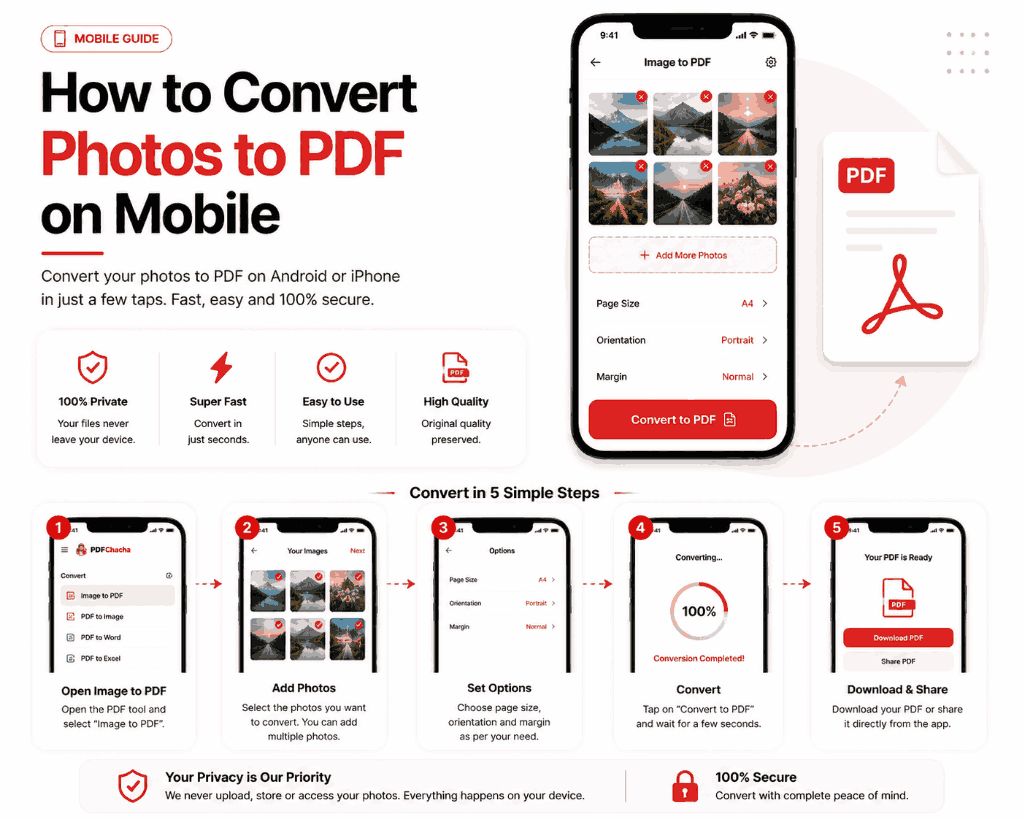
Follow these exact steps to compile a document on your phone:
- 1Access the Tool: Open your mobile browser and navigate to a secure JPG to PDF generator.
- 2Select Photos: Tap the upload area. Your OS will securely prompt you to select images from your Photo Library or take a new picture using the camera.
- 3Convert: Tap generate. Your phone's internal processor (like Apple's A-series chip) will stitch the PDF together in milliseconds.
- 4Save Locally: On Android, tapping download saves it to the "Downloads" folder. On iPhone, tap the Safari share sheet icon and select "Save to Files".
Handling Apple HEIC Files
Modern iPhones do not shoot photos in JPG format; they use a high-efficiency format called HEIC. Historically, this caused massive compatibility issues with web tools.
However, advanced client-side processors in 2026 contain built-in HEIC decoders. When you select an HEIC image from your iPhone library, the browser decodes it natively in RAM and embeds it directly into the PDF, completely bypassing the need for a secondary format conversion app.
PWA vs Native Apps
| Feature | Native App Store Apps | Browser PWAs |
|---|---|---|
| Storage Space | Requires 50MB - 200MB | 0 MB (Runs in browser) |
| Privacy Access | Broad library & camera access | Strictly sandboxed to selected files |
| Updates | Requires manual App Store updates | Always updated automatically |
Common Mistakes
- Using Cloud Converters on Cellular Data: If you are not on Wi-Fi, using an older website that uploads your photos to a server will burn through your cellular data cap instantly. Always use client-side tools when roaming.
- Forgetting to Save (iPhone): Because iOS sandboxes Safari downloads differently than Android, many users tap "Download," view the PDF in the Safari preview pane, and close the tab, losing the file. Always remember to hit the Share icon and "Save to Files."
Pro Tips for Mobile Power Users
Install to Home Screen
You can bypass the browser entirely. Open PDFChacha in Safari on your iPhone, tap the Share icon, and select "Add to Home Screen". It will place an icon alongside your other apps. Tapping it opens a full-screen, standalone application that works instantly, even if you are entirely offline on an airplane.
Frequently Asked Questions
How can I convert photos to PDF on my phone without an app?
You can use a client-side Progressive Web App (PWA) like PDFChacha directly in mobile Safari or Chrome. It functions exactly like an app but doesn't require an App Store download.
Are mobile PDF scanner apps safe?
Many free scanner apps in the App Store and Google Play are known to aggressively track data, show intrusive ads, or charge hidden subscriptions. A browser-based local processor is generally much safer.
Does this work with iPhone HEIC photos?
Yes. Advanced client-side tools natively support Apple's HEIC image format, decoding it directly in the browser and wrapping it into a PDF without requiring prior conversion to JPG.
Will it use up my mobile data plan?
No. Because the conversion happens locally on your phone's processor (client-side), no files are uploaded or downloaded, meaning zero cellular data is consumed during the conversion.
How do I save the PDF on an iPhone?
After generation, tap 'Download'. Safari will prompt you to view it. Tap the Share icon and select 'Save to Files' to store it permanently on your iCloud or local device storage.
How do I save the PDF on Android?
On Android Chrome, tapping 'Download' will automatically save the PDF to your 'Downloads' folder, accessible via the Google Files app.
Conclusion
Your smartphone is capable of handling document conversions without relying on third-party applications or remote cloud servers. By leveraging the browser sandbox and local processing, you can protect your data, save storage space, and streamline your mobile workflow.
Next time you need to scan a receipt or share an ID, consider a browser-based solution. You can add the PDFChacha Converter to your home screen to experience offline conversion directly from your camera roll.