How to Merge Multiple Images into One PDF: A Complete Guide
Quick Answer
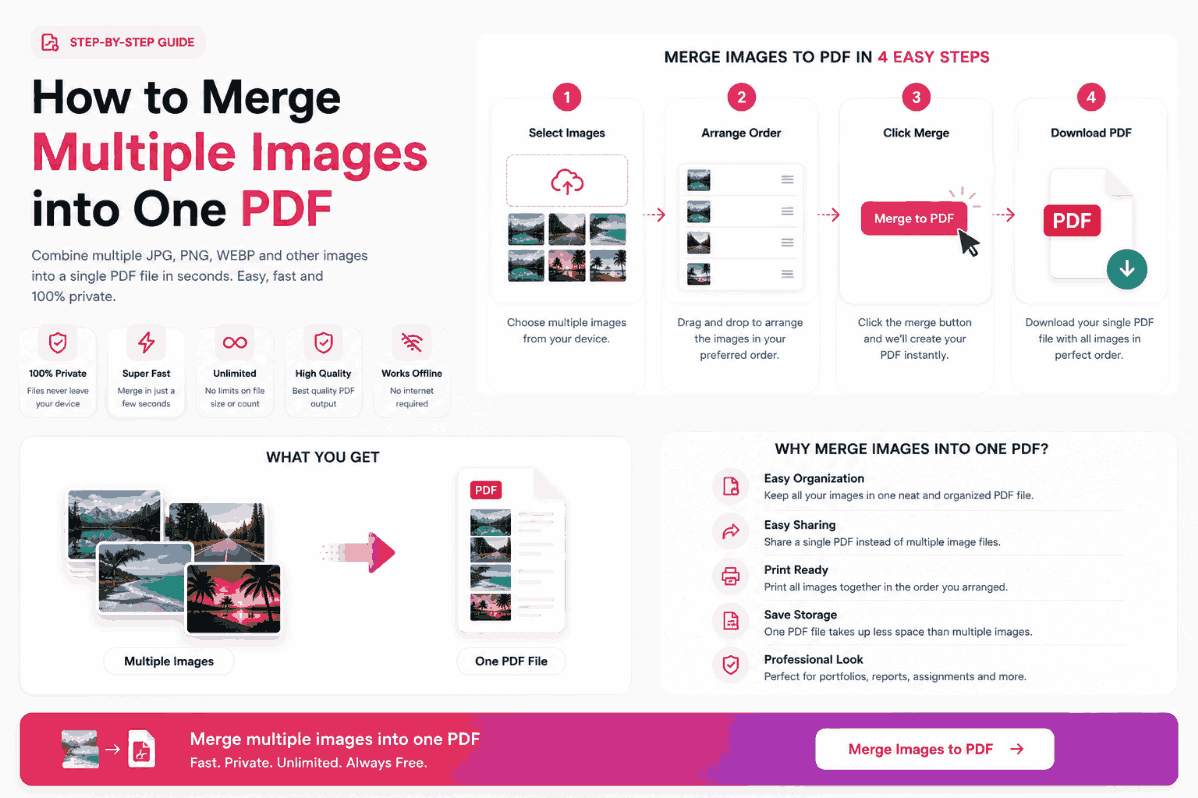
To merge multiple images into one cohesive document, drag and drop them into a client-side PDF compiler. Use the visual interface to drag the thumbnails into the correct order. The browser's engine will instantly stitch them together—one image per page—into a single, highly shareable PDF file without requiring any network uploads.
Summary
Emailing ten separate image attachments is unprofessional and often triggers spam filters or file size limits. Merging images into a single PDF solves this problem, providing a clean, organized reading experience. This guide breaks down the technical process of multi-image compilation, how to arrange your layout perfectly, and how to avoid the data limits imposed by older cloud services.
Introduction
Whether you are a real estate agent sending property photos, a student submitting homework scans, or a project manager compiling expense receipts, sharing multiple JPG or PNG files individually is inefficient.
The PDF format was designed specifically to act as a digital binder, locking multiple pages of content into a single, unalterable package. However, historically, merging 50 high-resolution images required expensive desktop software or waiting in a slow cloud server queue. Today, we utilize local browser memory to compile massive binders instantly.
Why Merge Images?
Consolidating your digital assets into a single document offers several distinct advantages:
Professional Presentation
Clients and professors do not want to download 15 separate files from an email. A single PDF demonstrates organization and respect for their time.
Bypassing Email Limits
Email clients often block attachments exceeding 25MB. By merging and applying slight compression within the PDF wrapper, you can condense massive portfolios into mailable sizes.
Locked Sequencing
When you send individual images, the recipient's OS might sort them randomly. A PDF forces the reader to view the content in the exact narrative order you designed.
Format Standardization
A single PDF can safely house a mix of JPGs, PNGs, and WEBPs, ensuring the recipient can view them all without requiring specific image viewers.
Step-by-Step Merging Guide
Follow this workflow to compile your document flawlessly:
- 1Batch Selection: Highlight all the images on your computer (using `Ctrl` or `Cmd` + Click) and drag them simultaneously into the converter's drop zone.
- 2Reorder Visually: Most tools provide a grid of thumbnails. Click and drag the thumbnails until they match your desired reading order.
- 3Configure Orientation: Decide if you want the PDF to be standard A4, US Letter, or "Original Size" (which adapts the page size dynamically to each photo's aspect ratio).
- 4Stitch & Save: Click generate. The software will create a multi-page document that you can instantly save to your local drive.
Under the Hood: Canvas Stitching
How does the browser actually combine 50 different files?
When you click generate, a WebAssembly script initiates a "PDF Dictionary" structure. It creates a master index indicating how many pages exist. It then loops through each image in your RAM, writes a `/Page` object in the PDF code, embeds the raw image binary into that page, and moves to the next. Because this process happens in memory (RAM), there is virtually zero latency. It can compile a 100-page document faster than you can blink.
Real-World Scenarios
The Real Estate Agent:
John needs to send a property listing to a client. He has 15 HEIC photos from his iPhone. Instead of sending 15 attachments that the client can't open on Windows, he merges them into a single PDF, creating a seamless virtual tour that opens perfectly on any device.
The Financial Auditor:
Sarah must archive 200 scanned invoices. Because the invoices contain sensitive routing numbers, she cannot upload them to a free cloud merging site. She uses a secure client-side processor to merge them locally, ensuring absolute data sovereignty while organizing the fiscal year.
Common Merging Mistakes
Ignoring Aspect Ratios
If you merge a very tall, panoramic image with standard square photos, and force them all into an A4 template, the panorama will be drastically shrunk to fit the width. To avoid this, select the "Original Size" option in your compiler so each page adapts to the specific image's dimensions.
Pro Organization Tips
If you are merging dozens of files, do the heavy lifting in your operating system first. Rename your files sequentially (e.g., `01-cover.jpg`, `02-intro.jpg`, `03-data.jpg`). When you drag them into the Image to PDF Merging Tool, the software will automatically read the sequential filenames and sort them in perfect order, saving you from dragging 50 thumbnails manually.
Frequently Asked Questions
How do I merge multiple images into one PDF?
Select all the images you want to combine and drop them into a client-side converter like PDFChacha. You can drag to reorder them, and the engine will stitch them into a single, multi-page PDF document instantly.
Can I rearrange the order of the images?
Yes. Before clicking generate, modern interfaces allow you to click and drag the thumbnail previews into the exact sequence you require.
Does merging images reduce their quality?
If you use a client-side processor, no. The raw binary data of each image is embedded perfectly into its respective page without server-side compression algorithms interfering.
How many images can I merge at once?
Unlike cloud tools that restrict you to 10 or 20 files, local processors can handle hundreds of images simultaneously. The only bottleneck is the physical RAM installed on your device.
Can I mix JPGs, PNGs, and WEBPs in the same PDF?
Absolutely. A well-engineered compiler will handle different formats seamlessly, assigning each image to a new page regardless of its original file type.
Is my data safe if I merge 100 confidential documents?
Yes, provided the tool does not upload files. Client-side tools merge everything within your browser's secure sandbox, guaranteeing that your confidential data never reaches the internet.
Conclusion
Merging files is the most effective way to elevate a scattered folder of images into a professional, cohesive presentation. By understanding how to sequence your files and configure your canvas size, you can build digital binders that impress your clients and colleagues.
Stop struggling with email limits and messy folders. Drag your files into the secure PDF compiler today and build your ultimate document in seconds.